Вовед
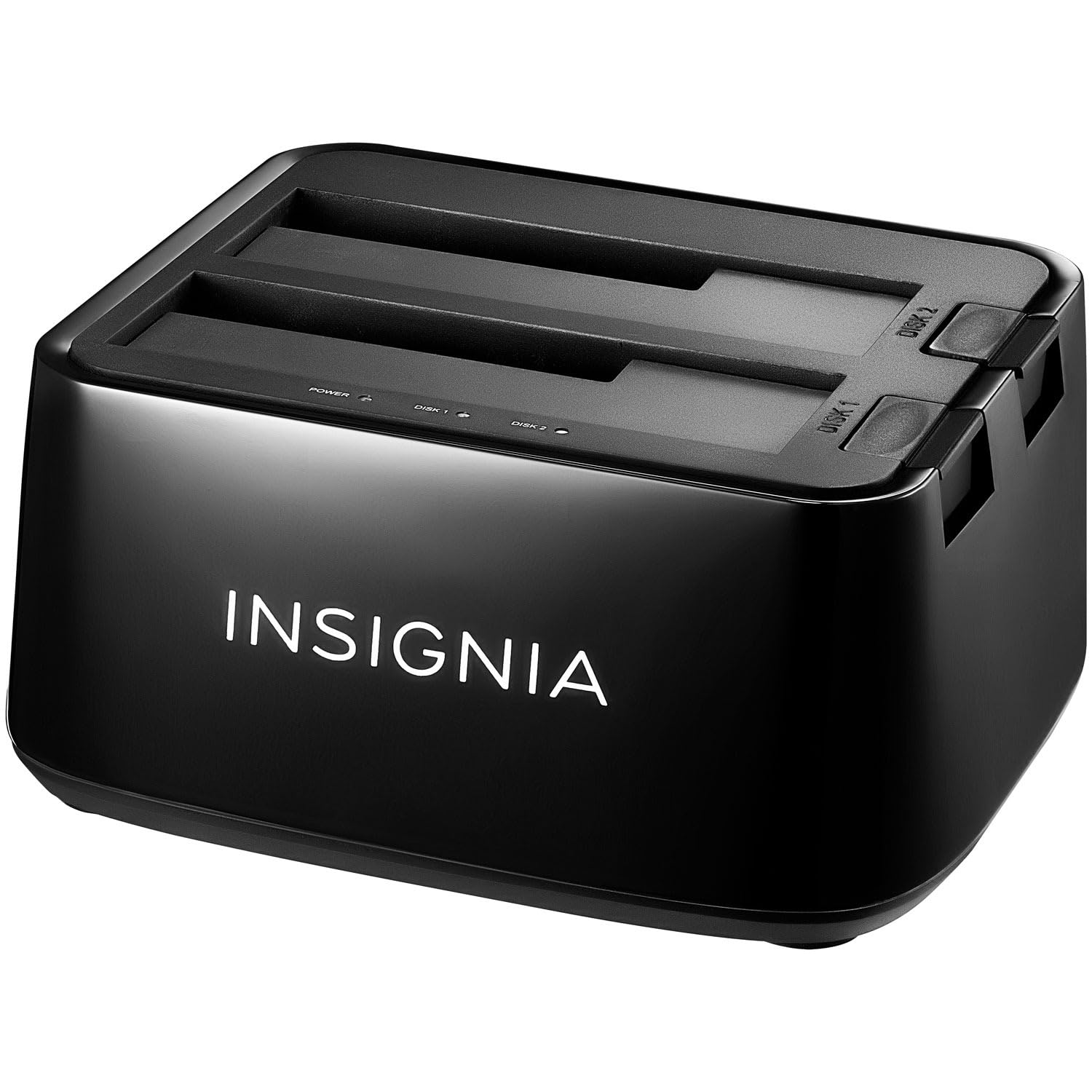
The Insignia USB Dual Hard Drive Docking Station provides a convenient and efficient solution for connecting 2.5-inch and 3.5-inch SATA hard drives (HDDs) and solid-state drives (SSDs) to your computer. This docking station supports high-speed data transfer and offers plug-and-play functionality, making it ideal for data recovery, backups, and expanding storage capacity.
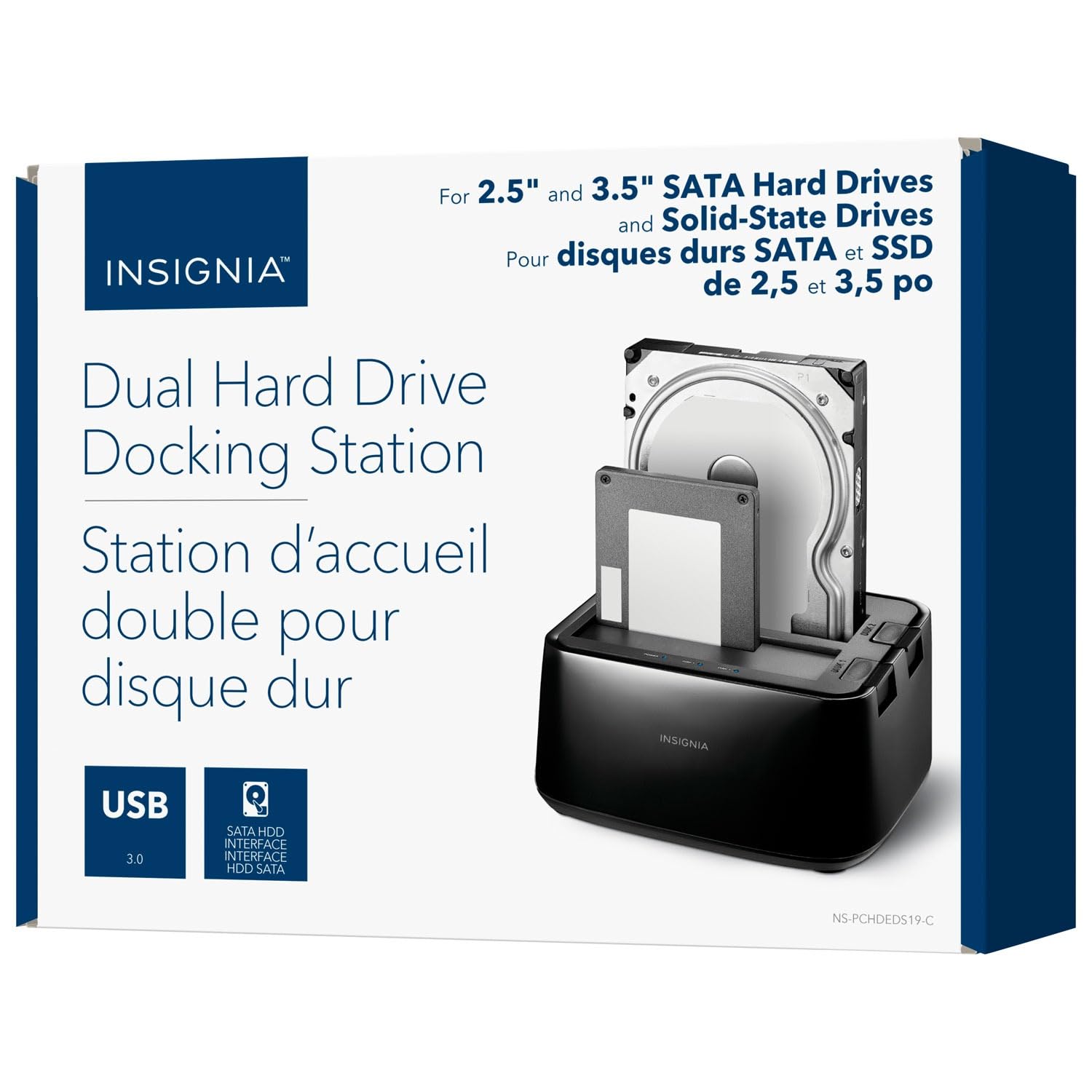
Слика: напред view of the Insignia USB Dual Hard Drive Docking Station packaging, showing the product and its compatibility with 2.5" and 3.5" SATA drives.
Содржина на пакетот
Ве молиме проверете дали сите артикли се присутни во вашиот пакет:
- Insignia USB Dual Hard Drive Docking Station
- Адаптер за напојување (12V/3A)
- Кабел USB 3.0
- Водич за брзо поставување
Карактеристики на производот
- Разновидна компатибилност: Supports both 2.5-inch and 3.5-inch SATA I/II/III HDDs and SSDs. Compatible with Windows 11, 10, macOS, ChromeOS, iPadOS, and Android systems.
- Перформанси со голема брзина: Utilizes USB 3.0 technology for data transfer speeds up to 5 Gbps.
- Дизајн со двоен отвор: Allows simultaneous access to two hard drives.
- Едноставност на „вклучи и пушти“: Не се потребни драјвери за инсталација.
- Може да се замени во топла форма: Drives can be inserted and removed without restarting the computer.
- LED индикатори: Provides visual feedback for power and data activity.
- Издржлива конструкција: Crafted with robust plastic materials for long-lasting use.
Поставување
Follow these steps to set up your Insignia USB Dual Hard Drive Docking Station:
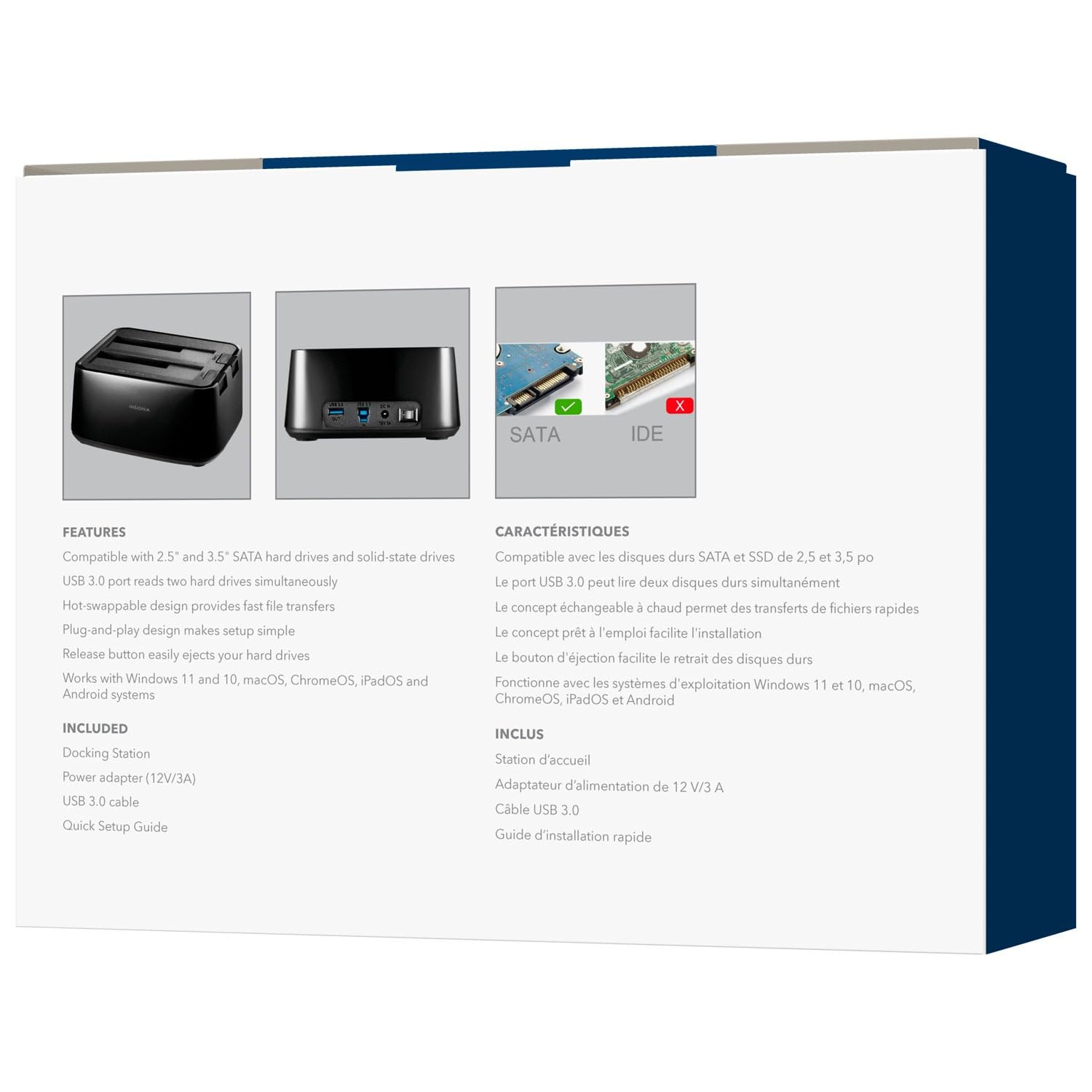
- Поврзете напојување: Plug the included 12V/3A power adapter into the DC IN port on the back of the docking station, then plug the adapter into a power outlet.
- Вметнете хард дискови: Gently slide your 2.5-inch or 3.5-inch SATA HDD/SSD into an available drive bay (Disk 1 or Disk 2) until it is firmly seated. Ensure the SATA connector on the drive aligns with the connector in the bay.
- Поврзете се со компјутер: Connect one end of the USB 3.0 cable to the USB 3.0 IN port on the docking station and the other end to an available USB port on your computer.
- Вклучување: Flip the power switch on the back of the docking station to the ON position. The power LED indicator will illuminate.
Слика: Заден дел view of the docking station, highlighting the USB 3.0 IN/OUT ports, DC IN power port, and power switch.
Слика: Горе напред view of the docking station with a 2.5-inch SSD and a 3.5-inch HDD correctly inserted into their respective bays.
Упатства за работа
Вметнување и отстранување на дискови
- За да се вметне: Align the SATA connector of your HDD/SSD with the slot in the docking station bay and gently push down until the drive is securely seated.
- За да се отстрани: Ensure no data transfer is active. Safely eject the drive from your operating system (e.g., "Safely Remove Hardware" on Windows, "Eject" on macOS). Then, press the release button next to the drive bay and carefully pull the drive upwards to remove it.
Пренос на податоци
Once connected and powered on, your operating system should automatically detect the inserted drives. They will appear as removable storage devices. You can then drag and drop files, copy, paste, or use backup software as you would with any other external storage device.
LED индикатори
- Напојување LED: Illuminates when the docking station is powered on.
- Activity LEDs (Disk 1, Disk 2): Blink when data is being accessed or transferred to/from the corresponding drive.
Одржување
- Чистење: Користете мека, сува крпа за чистење на надворешноста на приклучната станица. Не користете течни средства за чистење или растворувачи.
- Складирање: Кога не е во употреба, чувајте ја приклучната станица на ладно и суво место, подалеку од директна сончева светлина и екстремни температури.
- Ракување: Избегнувајте испуштање или изложување на уредот на силни удари, бидејќи тоа може да ги оштети внатрешните компоненти.
Решавање проблеми
Не е откриен диск
- Проверете дали адаптерот за напојување е безбедно поврзан и дали приклучната станица е вклучена.
- Verify that the USB cable is firmly connected to both the docking station and your computer.
- Обидете се да го поврзете USB-кабелот со друга USB-порта на вашиот компјутер.
- Ensure the hard drive is properly seated in the docking station bay.
- Check Disk Management (Windows) or Disk Utility (macOS) to see if the drive is recognized but unformatted or unallocated.
- Test with a different known-good hard drive to rule out a drive issue.
Бавни брзини на пренос на податоци
- Ensure you are connected to a USB 3.0 port on your computer for optimal speeds. Connecting to a USB 2.0 port will result in slower transfer rates.
- Verify the hard drive itself is capable of high speeds. Older HDDs may have slower performance.
- Избегнувајте префрлање на многу мали files истовремено, бидејќи тоа може да ја намали вкупната брзина на пренос.
Docking Station Not Powering On
- Check that the power adapter is correctly plugged into both the docking station and a working power outlet.
- Ensure the power switch on the back of the docking station is in the ON position.
- Обидете се со друг штекер.
Спецификации
| Бренд | ИНСИГНИЈА |
| Модел | B0FWFVTZ9W |
| Хардверски интерфејс | USB 3.0 |
| Компатибилни типови дискови | 2.5" and 3.5" SATA I/II/III HDD/SSD |
| Брзина на пренос на податоци | До 5 Gbps (USB 3.0) |
| Хардверска платформа | Универзална |
| Материјал | Пластика |
| Адаптер за напојување | 12V/3A |
Гаранција и поддршка
For warranty information and technical support, please refer to the documentation included with your product or visit the official INSIGNIA website. You may also contact INSIGNIA customer service directly for assistance.


