1. Вовед
The Brother DCP-L2640DW is a compact, high-performance monochrome laser all-in-one printer designed for home offices and small workgroups. This manual provides essential information for setting up, operating, maintaining, and troubleshooting your printer to ensure optimal performance.
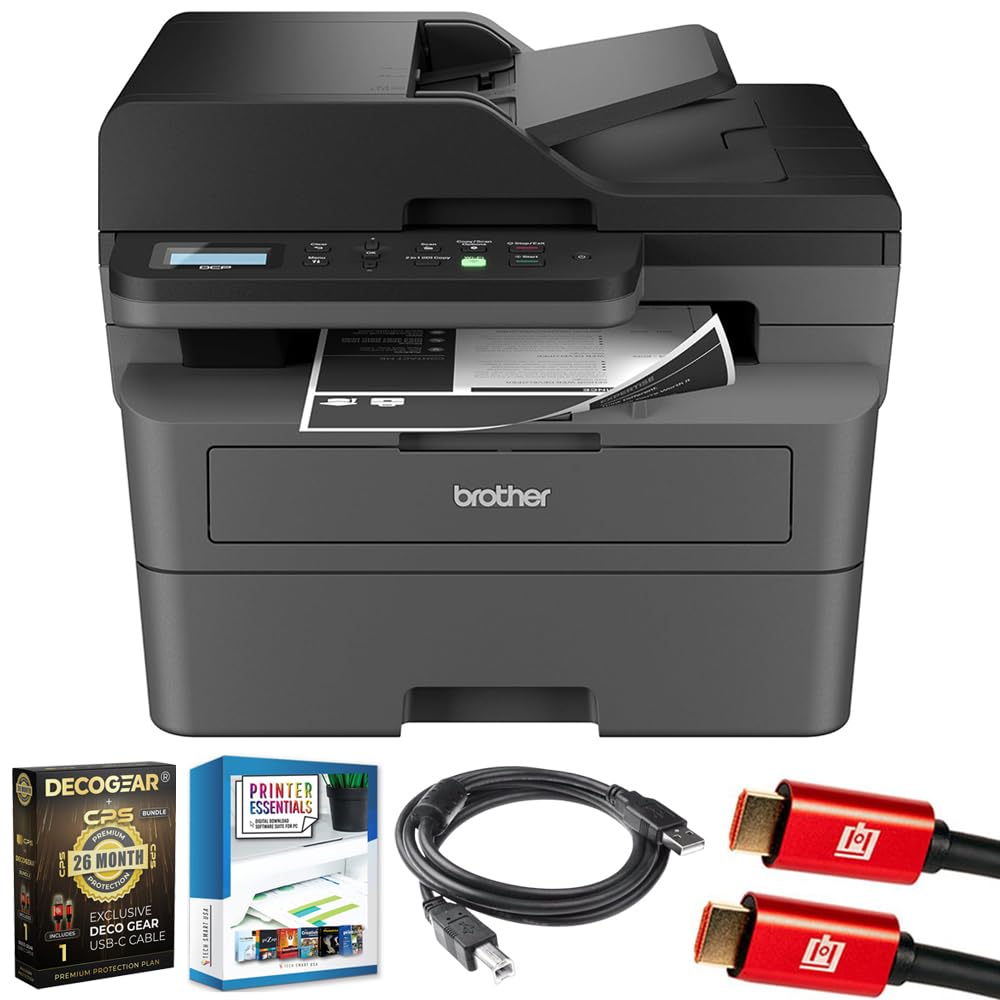
Image 1.1: Brother DCP-L2640DW Compact Monochrome Laser Printer
2. Клучни карактеристики
- Функционалност 3-во-1: Print, copy, and scan capabilities in a compact design.
- Брзи брзини на печатење: Delivers up to 36 pages per minute for efficient task completion.
- Автоматско двострано печатење: Built-in two-sided printing to save time and paper.
- 50-Sheet Automatic Document Feeder (ADF): For efficient multi-page scanning and copying.
- High-Capacity Paper Handling: 250-sheet paper tray plus a manual feed slot for diverse media types.
- Флексибилни опции за поврзување: Dual-band Wi-Fi, Ethernet, USB, and mobile printing via Brother Mobile Connect, AirPrint, Mopria, and Wi-Fi Direct.
- Advanced Network Security: Features like TLS/SSL, SNMP v3, and IP filtering for secure operation.

Слика 2.1: Готовоview of the Brother DCP-L2640DW's key features including print speed, connectivity, and compact design.
3. Што има во кутијата
- Brother DCP-L2640DW Monochrome Laser Printer
- Starter Black Toner Cartridge (approx. 700 pages)
- Brother DR830 Drum Unit (approx. 15,000 pages)
- Кабел за напојување со наизменична струја
- Documentation (Quick Setup Guide, Product Safety and Protection Information)
4. Поставување
4.1. Отпакување
- Внимателно отстранете го печатачот од неговото пакување.
- Отстранете ги сите заштитни ленти и материјали за пакување од надворешноста и внатрешноста на печатачот.
4.2. Toner Cartridge and Drum Unit Installation
- Отворете го предниот капак на печатачот.
- Remove the toner cartridge and drum unit assembly from the printer.
- Unpack the new toner cartridge and drum unit.
- Вметнете ја касетата со тонер цврсто во единицата на барабанот додека не се заклучи на своето место.
- Slide the green tab on the drum unit from left to right several times to clean the corona wire. Return the tab to the home position.
- Reinstall the toner cartridge and drum unit assembly into the printer.
- Затворете го предниот капак.
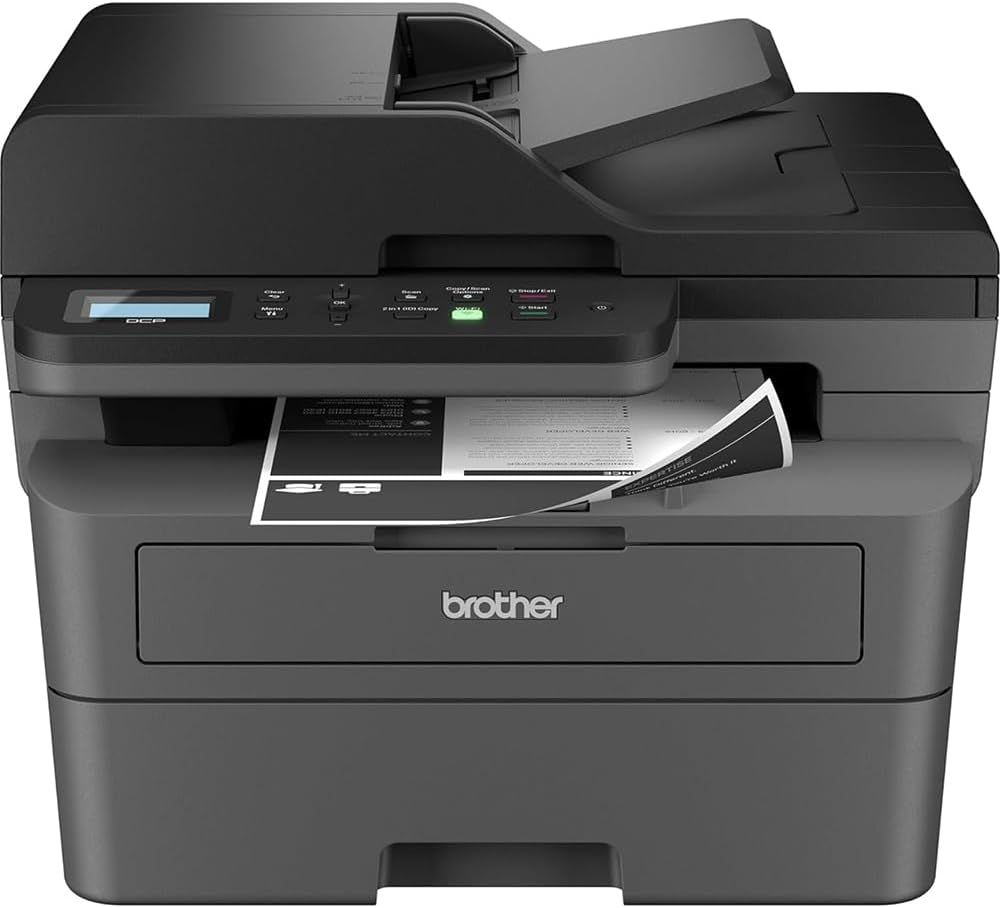
Image 4.1: The Brother DCP-L2640DW printer with the front cover open, showing the toner cartridge and drum unit assembly.
4.3. Поврзување за напојување
- Connect the AC power cord to the printer's power input.
- Приклучете го другиот крај на кабелот за напојување во заземјен електричен штекер.
- Притиснете го копчето за вклучување за да го вклучите печатачот.
4.4. Initial Setup & Connectivity
Follow the on-screen instructions on the printer's LCD display to complete the initial setup, including language selection and date/time settings.
- Безжично поставување: Navigate to the network settings on the printer's control panel, select your Wi-Fi network, and enter the password.
- Етернет конекција: Поврзете етернет кабел од вашиот рутер или мрежен центар со етернет-портата на печатачот.
- USB конекција: Поврзете USB кабел од вашиот компјутер со USB-портата на печатачот.
- Инсталација на драјвери: Install the printer drivers from the included CD-ROM or download them from the official Brother support webсајт.
Видео 4.1: Производ надview video demonstrating the Brother DCP-L2640DW printer's features and ease of use.
5. Упатства за работа
5.1. Печатење на документи
- Load paper into the 250-sheet paper tray or the manual feed slot.
- From your computer or mobile device, open the document you wish to print.
- Изберете „Печати“ од менито на апликацијата.
- Choose your Brother DCP-L2640DW printer.
- Adjust print settings (e.g., number of copies, duplex printing) as needed.
- Кликнете на „Печати“.
5.2. Копирање документи
- Place your document face down on the scanner glass or face up in the Automatic Document Feeder (ADF).
- На контролната табла на печатачот, притиснете го копчето „Копирај“.
- Use the arrow keys to select the number of copies or adjust other settings.
- Притиснете „Старт“ за да започнете со копирање.

Image 5.1: The Brother DCP-L2640DW highlighting its Automatic Document Feeder for multi-page tasks.
5.3. Скенирање документи
- Place your document face down on the scanner glass or face up in the ADF.
- On the printer's control panel, press the 'Scan' button.
- Select your desired scan destination (e.g., PC, email, cloud).
- Прилагодете ги поставките за скенирање (на пр., резолуција, режим на боја) по потреба.
- Притиснете „Старт“ за да започнете со скенирање.
5.4. Мобилно печатење
The Brother DCP-L2640DW supports various mobile printing solutions:
- Апликација Brother Mobile Connect: Download the app to manage your printer, print, and scan from your smartphone or tablet.
- Apple AirPrint: Print directly from your Apple iOS device without installing drivers.
- Mopria Print Service: Print from Mopria-certified Android devices.
- Wi-Fi Direct: Print directly from your mobile device to the printer without needing a router.

Image 5.2: The Brother Mobile Connect App interface, showing options for document print, photo print, scan, copy, and toner monitoring.
6. Одржување
6.1. Toner Replacement
When the toner is low or empty, the printer's display will indicate that the toner cartridge needs to be replaced. Always use genuine Brother toner cartridges for optimal performance and print quality.
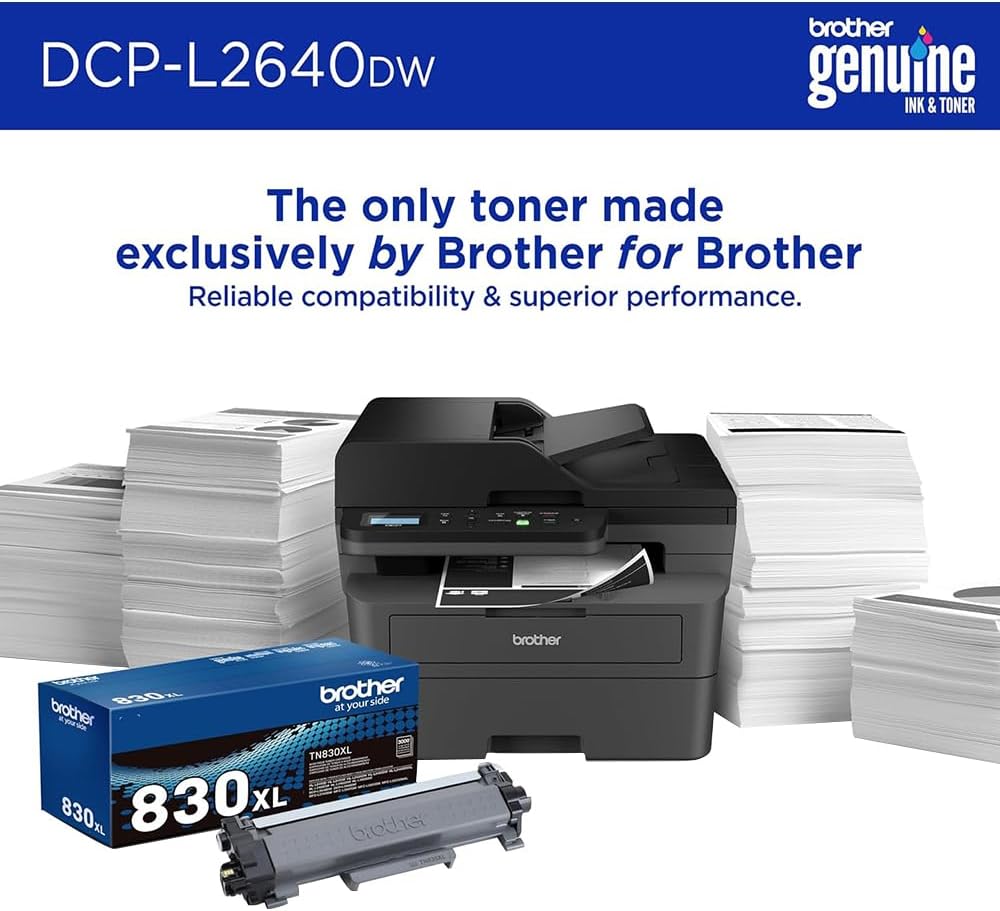
Image 6.1: Brother Genuine Ink & Toner packaging, emphasizing reliable compatibility and superior performance.
6.2. Drum Unit Replacement
The drum unit is a separate consumable that needs to be replaced periodically, typically after approximately 15,000 pages. The printer will notify you when it's time to replace the drum unit.
6.3. Чистење
- Надворешност: Избришете ја надворешноста на печатачот со мека крпа што не остава влакненца.
- Стакло за скенер: Clean the scanner glass with a soft, lint-free cloth moistened with glass cleaner.
- Корона жица: Regularly clean the corona wire inside the drum unit by sliding the green tab.
7 Смена на проблеми
- Заглавување на хартија: Follow the on-screen instructions or refer to the printer's documentation to clear paper jams from various access points.
- Проблеми со поврзувањето: Ensure the printer is connected to the correct network (Wi-Fi or Ethernet) or directly to the computer via USB. Restarting the printer and router can often resolve temporary connection problems.
- Лош квалитет на печатење: Check toner levels, clean the corona wire, and ensure you are using appropriate paper for your print job.
- Пораки за грешка: Refer to the printer's LCD display for specific error codes and consult the online manual or Brother support for solutions.
8. Спецификации
| Карактеристика | Детал |
|---|---|
| Број на модел | DCP-L2640DW |
| Технологија на печатење | Ласерски |
| Излез на печатач | Монохроматски |
| Максимална брзина на печатење монохроматски | 36 ppm |
| Максимална црно-бела резолуција за печатење | 1200 x 1200 точки на инч |
| Автоматско двострано печатење | Да |
| Тип на скенер | Рамен кревет |
| Максимален капацитет на влезен лист | 250 листови |
| Капацитет на автоматскиот внесувач на документи (ADF) | 50 листови |
| Технологија за поврзување | USB, Ethernet, Dual-band Wi-Fi |
| Компатибилен кертриџ | TN830, TN830XL |
| Димензии на производот | 15.7" Д x 16.1" Ш x 12.5" В |
| Тежина | Not specified in provided data, typically around 20-30 lbs for similar models. |
9. Гаранција и поддршка
The Brother DCP-L2640DW Monochrome Laser Printer comes with a Limited Warranty. For specific warranty terms and conditions, please refer to the documentation included with your product or visit the official Brother support webсајт.
За техничка поддршка, преземање драјвери и дополнителни ресурси, посетете ја страницата Брат поддршка Webсајт.


