1. Вовед
This manual provides essential information for the safe and efficient operation of your HP DesignJet Z6 44-inch Large Format Plotter Printer. Please read this manual thoroughly before using the printer to ensure proper setup, usage, and maintenance. Retain this manual for future reference.
The HP DesignJet Z6 is a professional-grade large-format printer designed for high-quality output of CAD drawings, GIS maps, posters, banners, and photographic prints. It features a 6-color pigment ink system and supports various media types up to 44 inches wide.

Слика 1.1: напред view of the HP DesignJet Z6 44-inch Large Format Plotter Printer, showcasing its robust design and integrated media basket.
2. Информации за безбедност
Секогаш почитувајте ги следниве безбедносни мерки за да спречите повреда или оштетување на печатачот:
- Ensure the printer is placed on a stable, level surface capable of supporting its weight.
- Connect the printer to a grounded power outlet. Do not use extension cords or adapters that are not rated for the printer's power requirements.
- Држете ги рацете и лабавата облека подалеку од подвижните делови за време на работата.
- Do not attempt to open or service internal components unless specifically instructed by this manual or authorized service personnel.
- Use only genuine HP ink cartridges and media to ensure optimal performance and prevent damage.
- Држете го печатачот подалеку од вода или прекумерна влажност.
- Исклучете го печатачот од штекерот пред чистење или вршење какво било одржување.
3. Поставување
3.1 Отпакување и поставување
Carefully remove the printer from its packaging. Retain all packaging materials for potential future transport. Place the printer in its intended location, ensuring adequate space around it for ventilation and access for media loading and maintenance.
3.2 Поврзување за напојување
Connect the power cord to the printer's power inlet and then to a grounded electrical outlet. Do not power on the printer until all initial setup steps are complete.
3.3 Initial Ink Cartridge Installation
- Отворете ја вратата за пристап до касетата со мастило.
- Распакувајте ја секоја касета со мастило.
- Вметнете ја секоја кертриџ во соодветниот отвор означен со боја додека не кликне на своето место.
- Затворете ја вратата за пристап до касетата со мастило.
3.4 Media Loading (Rolls)
The DesignJet Z6 supports dual rolls for continuous printing. Follow these steps to load a media roll:
- Ensure the media basket is in the open position.
- Open the roll cover.
- Insert the media roll onto the spindle, ensuring the media feeds from the top.
- Slide the spindle with the media roll into the designated roll slot (Roll 1 or Roll 2).
- Feed the leading edge of the media into the printer until it is detected.
- Затворете го капакот на ролната.
- The printer will automatically align and trim the media.

Image 3.1: A user loading a media roll onto the spindle, preparing it for insertion into the printer.

Image 3.2: A user adjusting the media roll after insertion, ensuring proper alignment within the printer's roll feeder.
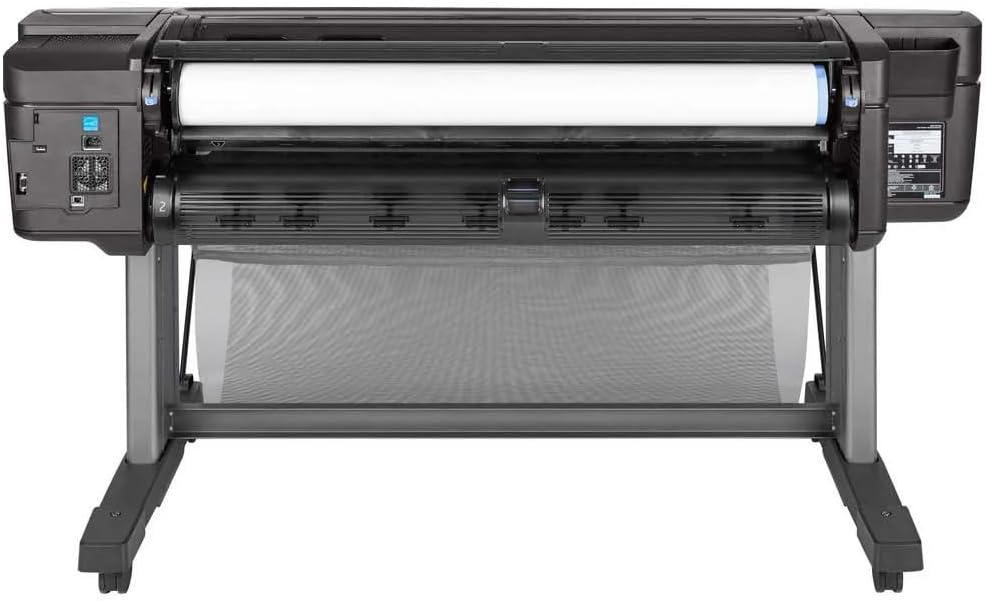
Слика 3.3: Од горе надолу view of the printer's media loading bay, illustrating the dual roll capacity and feed mechanism.
3.5 Мрежна и USB конекција
The printer supports Gigabit Ethernet and USB connectivity. Connect the appropriate cable to the printer and your network or computer. For network setup, follow the on-screen prompts on the printer's control panel to configure network settings (IP address, etc.).
3.6 Инсталација на драјвери
Install the latest printer drivers from the official HP webсајт (www.hp.com/support/designjetZ6) on your computer. Follow the on-screen instructions provided by the installer.
4. Ракување со печатачот
4.1 Контролната табла е завршенаview
The printer features an intuitive touchscreen control panel. Use it to navigate menus, check printer status, manage print jobs, and configure settings.
4.2 Печатење на документ
- Проверете дали печатачот е вклучен и поврзан со вашиот компјутер или мрежа.
- Отворете го документот што сакате да го испечатите на вашиот компјутер.
- Изберете File > Печати (или еквивалентната команда во вашата апликација).
- Choose the HP DesignJet Z6 printer from the list of available printers.
- Adjust print settings such as paper size, media type, print quality, and color options in the printer driver properties.
- Кликнете Печати.
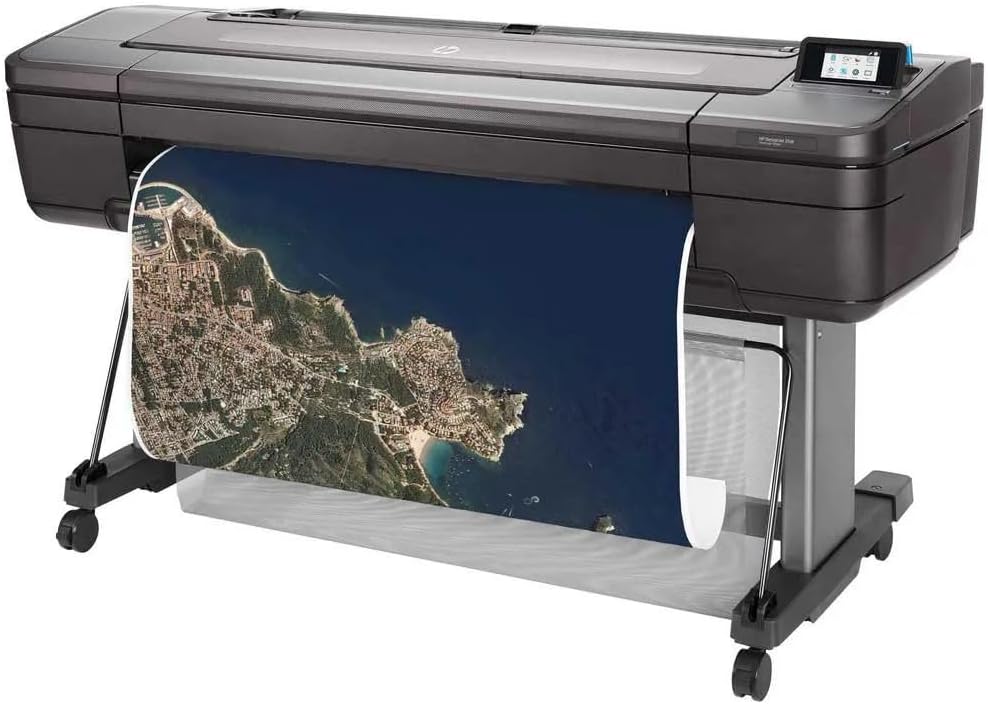
Image 4.1: The HP DesignJet Z6 printer in operation, producing a detailed large-format map print.

Image 4.2: The printer with its media output basket extended, ready to collect finished prints.
4.3 Media Handling
The printer automatically detects the loaded media type and size. Ensure the correct media profile is selected in the print driver for optimal results. The dual-roll system allows for automatic switching between rolls when one runs out or a different media type is required.
5. Одржување
Редовното одржување обезбедува постојан квалитет на печатење и го продолжува животниот век на вашиот печатач.
5.1 Замена на кертриџ со мастило
When an ink cartridge is low or empty, the printer's control panel will display a notification. To replace:
- Отворете ја вратата за пристап до касетата со мастило.
- Press the empty cartridge to release it, then pull it out.
- Unpack a new genuine HP ink cartridge.
- Вметнете ја новата кертриџ во соодветниот отвор додека не кликне.
- Затворете ја влезната врата.
5.2 Одржување на главата за печатење
The printer performs automatic printhead maintenance. If print quality issues arise (e.g., streaks, missing lines), you can initiate a printhead cleaning or alignment cycle from the control panel's maintenance menu.
5.3 Процедури за чистење
- Надворешност: Избришете ги надворешните површини со мека, гamp, крпа без влакненца. Не користете абразивни средства за чистење или растворувачи.
- Media Path: Periodically inspect the media path for dust or debris. Refer to the printer's control panel or online support for specific instructions on cleaning the media path if necessary.
5.4 Ажурирања на фирмверот
Regularly check for and install firmware updates from the HP website. Firmware updates can improve performance, add features, and resolve issues.
6 Смена на проблеми
This section addresses common issues you might encounter. For more detailed troubleshooting, refer to the HP support webсајт.
6.1 Проблеми со квалитетот на печатењето
- Streaks or Faded Colors: Check ink levels. Perform a printhead cleaning cycle from the control panel. Ensure the correct media type is selected in the print driver.
- Неточни бои: Verify color settings in the print driver. Ensure you are using genuine HP ink cartridges.
- Grainy Prints: Select a higher print quality setting in the print driver. Use appropriate media for high-resolution printing.
6.2 Проблеми со поврзување
- Печатачот не е откриен: Check all cable connections (USB or Ethernet). Restart the printer and your computer/network device. Verify network settings on the printer's control panel.
- Print Jobs Not Sending: Ensure printer drivers are correctly installed and updated. Check the print queue for stalled jobs.
6.3 Media Handling Errors
- Заглавување на хартија: Follow the on-screen instructions on the control panel to clear any jammed media. Always pull jammed media in the direction of the paper path to avoid damage.
- Media Not Loading: Ensure the roll is correctly seated on the spindle and inserted into the printer. Check that the leading edge is fed properly.
7. Спецификации
| Карактеристика | Спецификација |
|---|---|
| Име на моделот | HP DesignJet Z6 |
| Број на модел на ставка | T8W16A#B1K |
| Технологија на печатење | Inkjet (6-color pigment ink) |
| Максимална резолуција за печатење | 2400 x 1200 оптимизирани dpi |
| Максимална големина на медиум | 44 инчи |
| Поврзување | Gigabit Ethernet, USB |
| Бои на мастило | Cyan, Magenta, Yellow, Black (plus additional colors for 6-color system) |
| Хард диск | 500GB self-encrypting |
| Поддржани типови медиуми | Glossy photo paper, plain paper, various large-format technical documents |
| Димензии на производот | 71 x 39.3 x 27.4 инчи (1803 x 998 x 695 мм) |
| Посебни карактеристики | Energy Star certified, PostScript 3, native PDF support, dual-roll support |
8. Гаранција и поддршка
8.1 Информации за гаранцијата
This product is a Certified Amazon Renewed Product and comes with the Amazon Renewed Guarantee. For specific warranty terms and conditions, please refer to the documentation provided with your purchase or visit the Amazon Renewed program details page.
For new products, HP typically offers a limited warranty. Please refer to the official HP website or your product documentation for the most current warranty information.
8.2 Техничка поддршка
For technical assistance, driver downloads, and additional troubleshooting resources, please visit the official HP support webсајт:
- HP DesignJet Z6 Support Page
- You may also find helpful information on the Amazon Renewed support pages for renewed products.
When contacting support, have your printer's model number (Z6) and serial number ready. The serial number is typically located on a label on the back or side of the printer.